Building an agent runtime with AWS Lambda MicroVMs
October 29, 2026 | 7971 words | 30 min
How we built Autohive's agent runtime with AWS Lambda MicroVMs, a mounted filesystem, snapshot prewarming and transparent credential proxying.
A lot of my focus lately at Autohive has been on improving the agent harness and the experience of using agents on the platform. We already had ways for agents to run code, but there wasn't one execution environment where they could work with conversation inputs, workspace files and skills together. I wanted to give them a computer with those files available in one place, so they could use them in scripts and continue working with the results.
The system I built for this uses AWS Lambda MicroVMs. Agents can now run skill scripts against uploaded files, clone private repositories using their Autohive connections and use a browser in the same environment.
Getting this fast enough to use during a conversation was a big part of the work. The runtime now takes a median of 2.5 seconds from requesting a new environment to starting its first command, including mounting the agent's files. That took changes to how I prepared the snapshot, started the processes inside the VM and served the files from Autohive.
I'll start with why we needed a filesystem and what I tried with Fargate, then work through the runtime, mounts, startup improvements and credential proxy. If you're here for the Lambda details, you can jump straight to AWS Lambda MicroVMs.
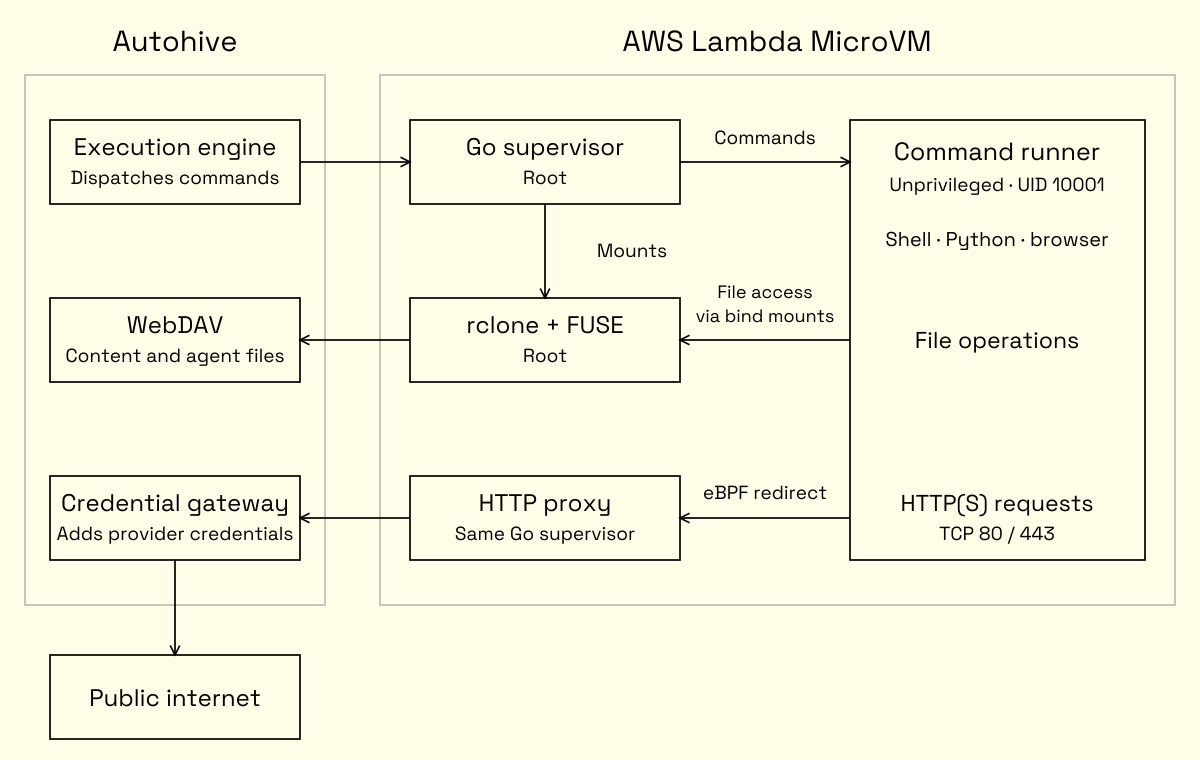
The diagram below shows the system we'll work towards, including what runs inside the MicroVM and how it connects back to Autohive for files and credentials.
Why agents need a file system
Coming from using agentic coding tools, I wanted agents in Autohive to be able to work with files in much the same way. Reading through a directory, writing a script, running it and inspecting the output are useful well beyond working on source code. Analysing a spreadsheet or generating a report involves the same process, and much of the software needed to do that already expects to read and write files.
A filesystem gives the agent somewhere to do that work. It can explore the available files, inspect their contents, create working directories and save intermediate results. Combined with code execution, it can use existing programs and libraries to process those files, or write its own scripts when the task requires something more specific. We can support more of these tasks without having to build a dedicated integration for every operation.
For example, an agent could read an uploaded spreadsheet with Python, save the analysis, generate charts and use those charts in a report. Those files remain available throughout the task. If the user asks for a different breakdown, the agent can update its script and regenerate the affected charts. The script, data and report give it something to continue working on across turns.
This also changes how much of the work needs to pass through the model’s context. A script can process the entire spreadsheet while returning just the column names, a sample of the data or the calculated results for the model to inspect. The input and intermediate files remain available if it needs to investigate further. Manus describes a related approach in its context engineering post, where keeping a document’s path allows its contents to be removed from context and read again later. The agent can retain access to more information than it needs in any individual model request.
Skills fit into this as well. Instructions, reference documents, templates and scripts can live together in a directory, with the agent reading what it needs for the current task. Anthropic’s PDF skill example includes a script for extracting form fields, which can run without loading either the script or the entire PDF into the model’s context. For a skill like this, the execution environment needs access to both the skill’s supporting files and the document it is working on.
For this to work across a platform, its tools also need to work with that filesystem. An image returned by an integration should be available for a script to edit, and the resulting file should be something the agent can inspect and present to the user. The platform can handle the underlying storage and transfers without requiring the agent to coordinate them between each step.
That was what I wanted to build for Autohive. Conversation inputs, workspace content and skills available through one filesystem, with an execution environment where agents could work on them. Running agent-written code meant that environment needed to be sandboxed, and the files exposed to it still needed to respect the user’s permissions.
Exposing Autohive's storage
Autohive already had several places where users and agents could work with files. Each workspace had a content area, conversations could have uploaded attachments and files returned by tools, and skills could include instructions, scripts and supporting files. These were managed by different parts of the application, with a shared storage service holding the file contents underneath them.
The way agents worked with those files followed those application boundaries. Creating a text file in the content area required WriteContentAreaFile, while updating an existing file used a separate content-area tool. We also added SaveToContentArea for copying existing files, including spreadsheets and PDFs, into workspace content. Each operation had its own inputs and rules about which files it could work with.
There was a shared ReadFile tool, which accepted a storage ID and content owner type. It could resolve files from several parts of the application and check the agent’s access, but being able to read a file didn’t mean the agent could use it in a script. That required another tool to copy it into a container, where it would then be addressed by a local path. The agent had to keep track of both representations and choose the right operation for whichever environment held the file.
The interface we settled on gave workspace content, conversation files and skills their own paths. Autohive would resolve a path through the part of the application responsible for that file, using the current conversation, workspace and agent to determine what was accessible.
We also moved file resolution and access checks into the layer that prepared file inputs for tools. An agent could supply a path such as /conversation-inputs/report.pdf, and the harness would resolve it, check access and provide the contents in the format the integration expected. The integration could then work with that input without having to understand Autohive’s storage identifiers or determine which workspace the file belonged to. Writes similarly needed their destination resolved and checked before changing the file.
This meant changing both sides of the tool interface. Tools needed to accept paths for file inputs, and files they returned needed paths the agent could use in subsequent operations. An integration could still require uploaded bytes or a URL, but the harness would handle that conversion.
Making those paths work inside the harness was one part of the change. Programs running in an execution environment also needed to be able to open them through the operating system. That required exposing the application’s files as a mounted filesystem.
Prototyping with Fargate
Fargate was the first solution I tried because Autohive already used it for container-backed integrations. We could start containers on demand, execute commands in them and stop them when they were no longer needed.
With that already working, I could experiment with giving a general-purpose container access to the workspace content area and letting the agent run shell commands against those files.
Exposing the content area over WebDAV
Autohive was already a web application serving pages, assets and API requests, so extending it to expose files over HTTP made sense. I didn’t want to reinvent the wheel with a custom protocol and filesystem client, so I looked into what already existed for accessing files this way.
WebDAV extends HTTP with operations for listing directories, writing files and moving them between folders, which matched what the content area already supported. With clients such as rclone available to handle the filesystem side, I could add a WebDAV endpoint to Autohive and map its requests to the existing content-area operations.
| Request | What Autohive did |
|---|---|
PROPFIND | List a folder or return file metadata |
GET | Resolve the file and retrieve its contents from storage |
PUT | Store new contents and create or update the file’s metadata |
MKCOL / MOVE / DELETE | Create folders, move entries or delete them |
For an overwrite, PUT saved a new storage asset and updated the existing file to reference it, then queued it for processing and indexing again. By mapping these requests to the operations we already had, I could expose the content area without changing how the storage engine stored its files.
rclone already supported WebDAV and could mount it at /content/workspace through FUSE. FUSE lets a userspace program handle filesystem operations, so programs such as Python and grep could access the remote files through local paths.
An early prototype showed what this made possible when I gave an agent some dummy data to clean up. With no integrations added, it was able to find the files in the content area, clean them, create image assets and organise the results into folders, all through filesystem access and code execution.
Where Fargate fell short
The FUSE mount worked in local Docker, but moving it to Fargate ran into a restriction on the device access and capabilities available to containers. The mount needed /dev/fuse and CAP_SYS_ADMIN, neither of which Fargate provides.
To keep experimenting on Fargate, I worked around that by copying the content area into the container and synchronising changes back over WebDAV. This started as a periodic copy loop, then moved to rclone bisync to track changes on both sides, including deletions, with synchronisation before and after commands as well.
I could run ls and get an empty directory, then run the same command a few seconds later and find the files. That's a pretty confusing environment to give an agent, especially when we'd already told it the files were ready to use.
Starting a fresh container also took around 40 seconds on average, before the command server’s health check. Because Fargate doesn’t cache image layers between tasks, every new session had to pull its image from ECR, even if another conversation had just used the same image. It then had to start the container and initialise the command server before the agent could run anything.
For someone asking an agent to work on a file in Autohive, that meant waiting most of a minute before it could even run its first command, even though the command itself was quick. Between that delay holding up the conversation and the unreliable synchronisation, Fargate wasn’t working out for what I wanted to build. The WebDAV endpoint was working, and the prototype had shown what agents could do with access to the files. I just needed a runtime that could start quickly and provide /dev/fuse and CAP_SYS_ADMIN, so I could use that endpoint through a live mount.
AWS Lambda MicroVMs
On 22 June 2026, AWS announced Lambda MicroVMs, which seemed to line up with exactly what I was looking for. They supported elevated Linux capabilities, advertised near-instant startup from snapshots, and could suspend and resume while preserving the environment, so I started experimenting with moving the command server and WebDAV mount into a MicroVM.
Keeping this in AWS also meant I could use the infrastructure we already had. I wanted control over the environment inside the VM, but managing Firecracker hosts or a pool of warm EC2 instances wasn't something I wanted to take on for this project. Lambda handled that side while giving me the mount privileges and snapshot lifecycle I needed.
A VM we could control
Lambda MicroVMs are built on Firecracker, a virtual machine monitor that uses Linux KVM to run lightweight VMs. Each VM has its own guest kernel, with the virtual machine providing the isolation boundary around the code running inside it. AWS manages the hosts and guest operating system, while we provide the application that runs inside the VM.
Despite the Lambda name, this has a different execution model from a Lambda function. We run a server inside the VM and receive requests through its dedicated HTTPS endpoint, with explicit control over when that VM starts, suspends, resumes and terminates. For Autohive, that meant we could send several commands to the same environment throughout a conversation, keeping its files and running processes between requests.
For Autohive, I configured a baseline of 1 vCPU and 2 GB of memory. Lambda can automatically scale that same VM up to four times its baseline, so the agent doesn't need a replacement environment just because one command needs more resources. The baseline is configured when building the image.
| Configured baseline | Maximum automatic scaling |
|---|---|
| 1 vCPU / 2 GB | 4 vCPU / 8 GB |
| 2 vCPU / 4 GB | 8 vCPU / 16 GB |
| 4 vCPU / 8 GB | 16 vCPU / 32 GB |
The image configuration also accepts additionalOsCapabilities set to ["ALL"], enabling elevated Linux capabilities within the VM. With that enabled, I could use /dev/fuse and CAP_SYS_ADMIN to mount the WebDAV endpoint. Those privileges were needed by the code managing the mount, so I kept that separate from the unprivileged process running the agent's commands.
Starting from a snapshot
To create a MicroVM image, we provide a Dockerfile and application files in a zip uploaded to S3, and Lambda builds and starts the application inside a MicroVM. Once initialisation is complete, it captures the disk and memory state in a snapshot, which it uses to start new VMs from that image version. This includes the processes that were already running when the snapshot was taken, so they don't have to start again for each new VM.
For Autohive, this meant I could initialise the command server, filesystem client and supporting tools before an agent needed them, then supply the conversation-specific configuration when a new VM was assigned work.
Because VMs started from the same image version inherit the same snapshot state, a conversation's files or access token must not be captured during the build. Autohive passes the WebDAV URL and a bearer token through runHookPayload when starting a VM, so the runtime can connect to the files it has been assigned after restoration.
Suspending and returning to the same work
A new VM begins with the snapshot captured during the image build, while a suspended VM returns with the memory and disk state it had when it paused. Lambda can suspend a VM after a configured idle period and, with automatic resume enabled, wake it when another request arrives at its endpoint.
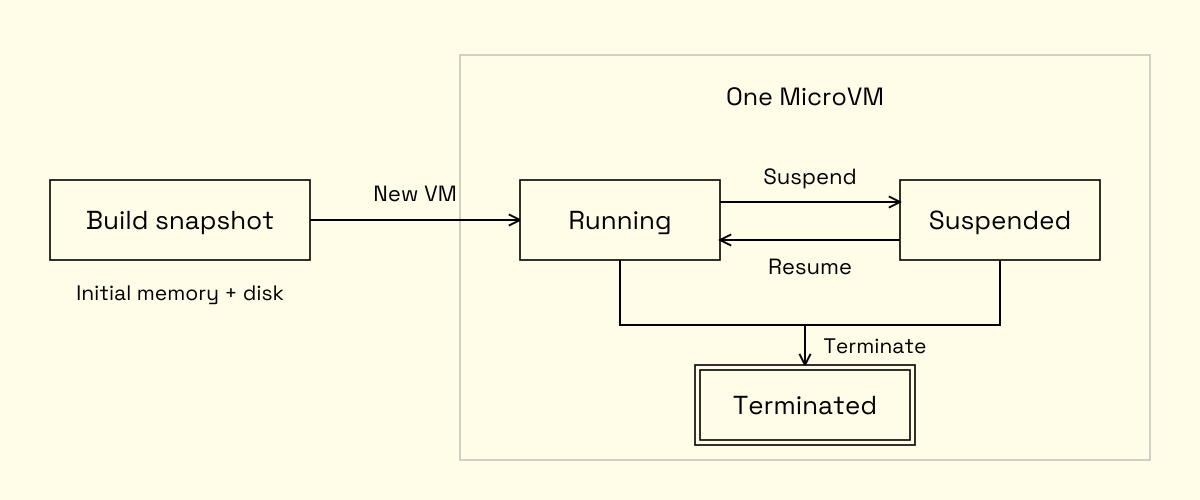
For an agent conversation, this meant the VM could preserve a script and its intermediate files between commands, even if it had been suspended while waiting for the next request. AWS limits each VM to a total lifespan of eight hours, including suspended time, and the idle policy can terminate it sooner. Work that needs to outlive that environment belongs in Autohive's storage, where a replacement VM can access it through the mount.
While a VM is running, AWS charges for its baseline resources even between commands, plus active usage above that baseline. At AWS's published US East (N. Virginia) pricing, ten minutes running at our 1-vCPU, 2-GB baseline costs about US$0.021 in compute. That excludes additional resource usage, snapshot operations, storage and data transfer. Suspending the VM stops the compute charge while preserving its state, though saving, storing and restoring that snapshot has its own cost.
To let our application prepare for these transitions, Lambda calls HTTP lifecycle hooks under /aws/lambda-microvms/runtime/v1/ on a port we configure, so we can finish initialisation, flush pending writes or reconnect before accepting more work.
| Hook | When it runs | What it is for |
|---|---|---|
ready | During image creation, before the snapshot | Finish preparing the application state to capture |
validate | On a VM restored from the new image | Check that the prepared application works after restoration |
run | When a new VM starts from the image | Apply the configuration supplied for this VM |
suspend | Before saving a running VM's state | Flush pending work and close external connections |
resume | When restoring a suspended VM | Reconnect and check that the environment can accept work |
terminate | Before releasing the VM | Perform final cleanup |
The build hooks control the reusable image, while the runtime hooks deal with an individual VM. Restoring memory does not guarantee that a remote connection is still usable, so our mount needed explicit handling across suspend and resume. I put these hooks in a supervisor that could manage the mount, receive incoming requests and control when the command runner was ready to accept work.
Building the runtime inside the VM
Lambda MicroVMs gave me the privileges I needed to mount Autohive's files, but those privileges also needed to be kept away from the code the agent was running. Giving that code root access would let it change mounts, read credentials held by the runtime and modify the programs responsible for managing its environment, even though it was isolated from other VMs.
I split the runtime into a root supervisor written in Go and a command server running as an unprivileged user. The supervisor handles incoming requests and the lifecycle hooks described above, while the command server starts the shell commands supplied by the agent. The filesystem client runs alongside them as a separate root process, controlled by the supervisor.
| Process | Runs as | Responsibility |
|---|---|---|
| Go supervisor | Root | Handle lifecycle hooks, manage mounts and forward command requests |
rclone rcd | Root | Connect to WebDAV and serve the mounted filesystem |
| Node command server | Unprivileged user | Start agent commands and return their output and exit status |
AWS still controls when the VM suspends, resumes or terminates. The supervisor handles what our application needs to do around those events, such as reconnecting the filesystem after restoration, and keeps the command server running if it exits.
Running commands without the mount privileges
The command server runs as a dedicated runner user with UID and GID 10001, so commands it launches inherit that identity. Before starting Node, the supervisor uses setpriv to change the user, clear supplementary groups and drop the capabilities inherited from the privileged runtime. The resulting command looks like this.
setpriv \
  --reuid=10001 --regid=10001 \
  --clear-groups \
  --no-new-privs \
  --inh-caps=-all \
  --ambient-caps=-all \
  --bounding-set=-all \
  -- node /app/exec-server.js
Linux capabilities grant individual privileges, including the CAP_SYS_ADMIN needed for our mount. Clearing the inheritable, ambient and bounding sets prevents those capabilities from being carried into programs the runner executes. The no_new_privs flag also prevents execution of a setuid binary or a file with capabilities from granting additional privileges, and remains set when the process launches children.
This applies before the command server starts, so its shell commands, Python scripts and any programs they launch all inherit the restrictions. The Dockerfile checks the UID, NoNewPrivs, effective capabilities and capability bounding set using the same launch flags during the build, so a change that breaks that configuration fails before the image is used by an agent.
Keeping credentials and mount control outside the runner
The command server passes its environment into the commands it starts, which means anything placed there is available to agent-written code. I therefore kept the session bearer in the supervisor and passed the WebDAV connection details directly to the root filesystem client, without putting them in the runner's environment or writing them into the shared snapshot.
For incoming command requests, the supervisor checks the session bearer and replaces it with the command server's internal token before forwarding the request. The runner can then stay initialised in the snapshot without knowing which conversation it will serve. Its internal token is available to code running under the same user, so it isn't a credential we rely on to separate the agent from the privileged parts of the runtime.
I used rclone rcd, which keeps rclone running and exposes an API the supervisor can use to create and remove mounts. That API listens on localhost, but code inside the VM can also make localhost requests, so it still needs authentication. The supervisor generates a credential for the API and passes it only to the rclone process, separately from the environment supplied to the command server.
The filesystem layout needs the same separation. The full WebDAV mount lives at /run/autohive/durable, beneath a root-only directory, and its cache is also root-only. The supervisor exposes selected directories through public bind mounts, including read-only bindings for skills, conversation inputs and tool outputs. Protecting the underlying mount matters because a read-only public path would achieve little if the agent could reach the same files through another writable path.
Waiting for an environment that can run commands
When building a sandbox, you need to decide what must be usable before accepting the first command. For Autohive, the agent needed to be able to run ls immediately and see the files available to it, so a readiness check that only confirmed the command server was listening wouldn't tell us enough. If we accepted commands before the filesystem was mounted, a successful ls could return an empty mount-point directory and leave the agent thinking there were no files to work with.
After starting or resuming a VM, the supervisor waits until it can list the WebDAV mount, verify the required directories and establish their public bindings. It also checks that the local scratchpad exists, and command requests receive 503 until the filesystem is ready. These checks exercise the filesystem the agent will use, instead of relying on whether the mount process started successfully.
The same reasoning applies to anything else a command depends on, so the supervisor also checks the credential interception setup before forwarding requests when that feature is active. Readiness needs to cover the environment we're promising the agent, including after a resume when processes may already be running but their external connections need to be re-established.
Once a command is running, the Node server streams its output back to Autohive and reports its exit status. It tracks each execution with a timeout and sends cancellation to the command's process group if the request disconnects or runs out of time, so stopping a tool call also attempts to stop the programs it launched. These controls handle the execution of a command within the sandbox, while the VM's lifetime can span several commands and pauses throughout a conversation.
Managing sandbox sessions
In Autohive, I scoped each sandbox session to a conversation and a configured agent, with subsequent tool calls from that agent reusing the same environment.
The configured agent matters here because agents can be granted access to specific subfolders of the content area instead of the whole content area. Two agents in the same conversation can therefore have different file access, and sharing a VM would let one agent read files the other had already copied into its local filesystem. Giving each agent its own environment lets me scope the mount to that agent's access and keep those local files separate.
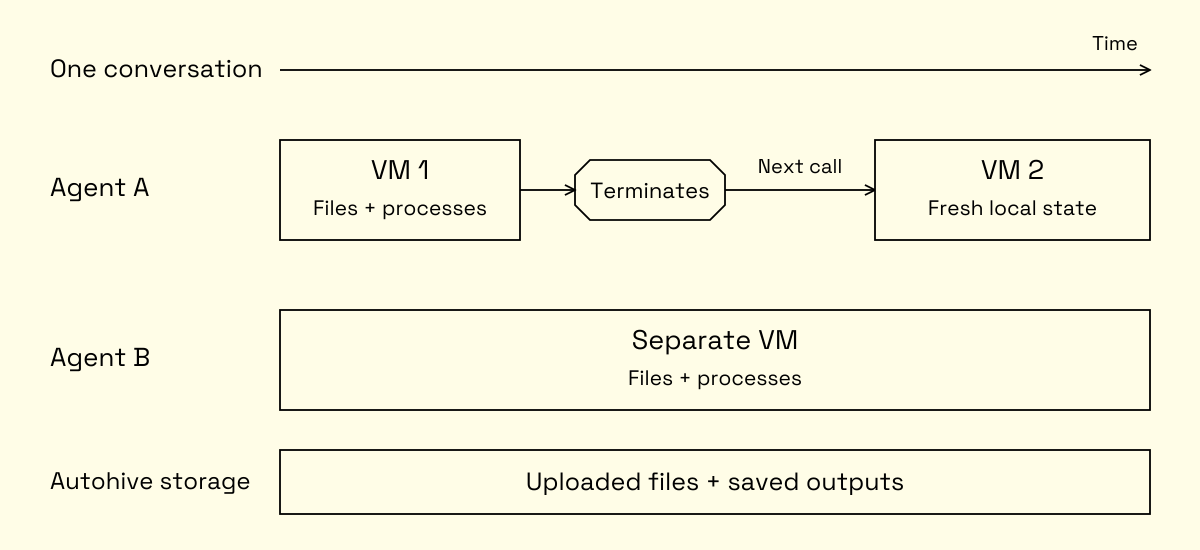
Autohive keeps track of the VM assigned to each pair and routes subsequent calls to it, while AWS handles idle suspension and resumption when traffic returns. If the VM has terminated, the next command gets a new one rather than trying to resume an environment that no longer exists.
When a conversation outlives its VM, the replacement reconnects to Autohive's files with the configured agent's access, but starts without the previous VM's scratchpad or running processes. Work that needs to survive replacement therefore has to be written to the mounted storage, which makes the choice between a local working directory and a durable output directory part of the filesystem design.
Mounting Autohive's files
The filesystem needed to bring together files from several parts of Autohive, with different rules about what the agent could do with them. An uploaded spreadsheet should be available to analyse without changing the original, and a skill's scripts should be executable without the agent modifying the skill itself. The agent also needed somewhere to save its results, even if it hadn't been granted access to the content area.
Choosing the filesystem layout
I extended the WebDAV endpoint from the Fargate prototype to expose conversation files and skills alongside workspace content, giving each its own directory in the mounted filesystem.
| Path | Contents | Access |
|---|---|---|
/content/workspace | Content area folders and files | Read-write within the agent's permitted content |
/conversation-inputs | Files uploaded to the conversation | Read-only |
/skills | Skill instructions, scripts and supporting files | Read-only |
/tool-outputs | Files returned by tools | Read-only |
/outputs | Files the agent creates for the conversation | Read-write |
/scratchpad | Local scripts and intermediate files | Read-write, local to the VM |
Keeping inputs and outputs separate lets the agent produce a modified spreadsheet in /outputs while retaining the uploaded version in /conversation-inputs. A script from /skills can work with those same files and save its results without modifying the skill's directory.
/scratchpad is the command runner's working directory on the VM's local disk. Scripts and intermediate files can stay there without every change going through WebDAV, while results intended to remain in the conversation can be written to /outputs.
Exposing the directories inside the VM
The supervisor asks the resident rclone daemon to mount the combined WebDAV namespace at /run/autohive/durable. The mount request in Go supplies the remote configuration directly to rclone's mount/mount API.
fs := map[string]string{
    "type":         "webdav",
    "url":          cfg.davURL,
    "vendor":       "other",
    "bearer_token": cfg.bearer,
}
_, err := r.rc("mount/mount", map[string]any{
    "fs":         fs,
    "mountPoint": cfg.mountPoint,
})
return err
Here, r.rc sends an authenticated request to the daemon's local API. The WebDAV URL and bearer arrive with the VM's assignment, so the shared snapshot never needs a user's mount configuration. The supervisor then uses bind mounts to expose subdirectories at the paths above. A bind mount makes an existing directory accessible at another path, so /skills can expose the skill files from the internal mount with its own read-only setting.
mount --bind /run/autohive/durable/skills /skills
mount -o remount,bind,ro /skills
The same setup applies to conversation inputs and tool outputs, while workspace content and generated outputs have writable bindings. The runner can only reach these public paths, as the internal mount remains beneath the root-only directory described earlier.
WebDAV also enforces these rules when handling requests. It rejects writes to skills, conversation inputs and tool outputs, and checks the configured agent's content area access before reading or modifying workspace files. A writable workspace mount therefore doesn't grant access to the entire content area, as each remote operation still goes through the application's access checks.
One issue I ran into was where to attach the read-only tool-output directory. I originally placed it at /outputs/tool-outputs, beneath the writable outputs mount. When rclone revalidated that parent directory's cache, the nested bind could become detached because its target was a directory entry managed by FUSE. Moving it to /tool-outputs put the bind target on the VM's root filesystem, where it no longer depended on the parent mount's directory cache.
Caching and reconnecting
When a program reads a content area file that rclone hasn't cached, the mount turns that read into a WebDAV request. Autohive checks the agent's access and resolves the file's storage reference before returning the bytes to the program.
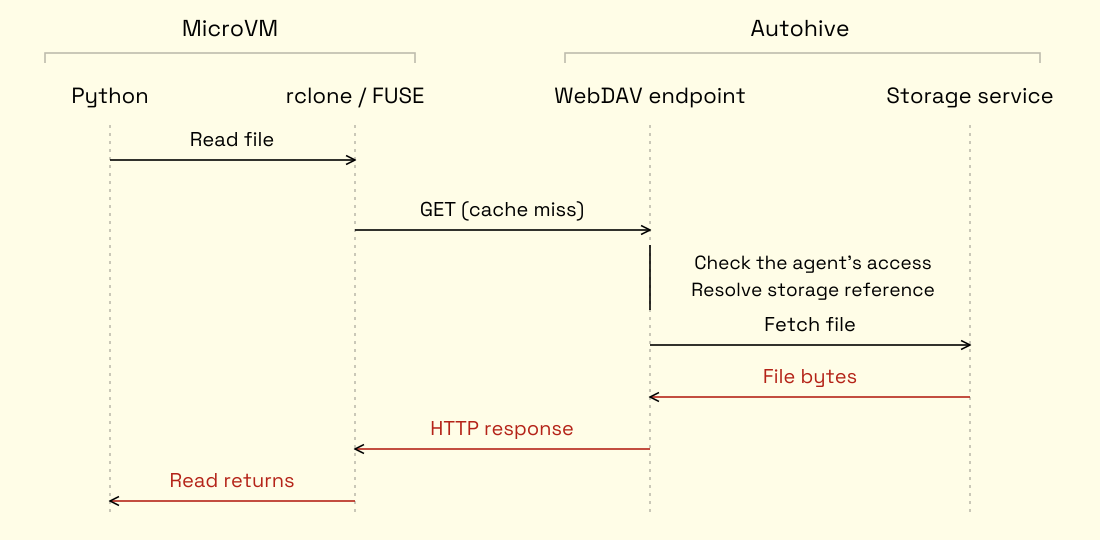
With the live mount, programs could access files as they needed them without first copying the entire content area into the VM. I used rclone's full VFS cache so repeated reads could reuse downloaded data, and programs could use operations such as seeking within a file while writing it. Without write caching, rclone restricts the file operations available to applications.
The cache also needed to account for changes made outside the sandbox. A user could upload another file during a conversation, or an integration could produce a new tool output that the next command needed to read. I initially had directory listings cached for five minutes, which was too long for this workflow, so I reduced that to two seconds and the kernel's attribute cache to one second.
RCLONE_VFS_CACHE_MODE=full
RCLONE_DIR_CACHE_TIME=2s
RCLONE_ATTR_TIMEOUT=1s
RCLONE_VFS_WRITE_BACK=1s
When a program accesses a directory after its cached listing expires, rclone requests a fresh listing through WebDAV. This refreshes the directories being used without continuously polling or scanning the entire content area.
Writes are buffered locally as well. With the one-second write-back setting, a closed file becomes eligible for upload after it has been idle for that period, so a command can finish before its output has reached Autohive's storage. Once WebDAV receives the upload, it stores the contents through the application, including updating the content record and queuing processing when a workspace file changes.
Before the VM suspends, the supervisor removes the public bind mounts in reverse order, then unmounts the underlying FUSE filesystem, leaving the rclone daemon running. On resume, it uses the retained WebDAV URL and bearer to create the mount again and restore the public bindings. This reconnects the filesystem without assuming that a network connection from before suspension is still usable, and command requests remain gated on the filesystem readiness checks described earlier.
Optimising startup times
The VM was up quickly, but the agent was still waiting on its first command. Starting rclone and Node, establishing the mount and loading Python libraries each added delays, so I needed timings around those steps to understand what was holding up execution.
Finding where the time went
The early runtime started rclone and the Node command server after the VM had been restored. A command that executed in a few milliseconds could take 9 to 40 seconds to complete from entry into the run hook, with most of that time spent preparing the environment. Prewarming during ready and exercising the restored image during validate reduced the delay, but startup times still varied considerably.
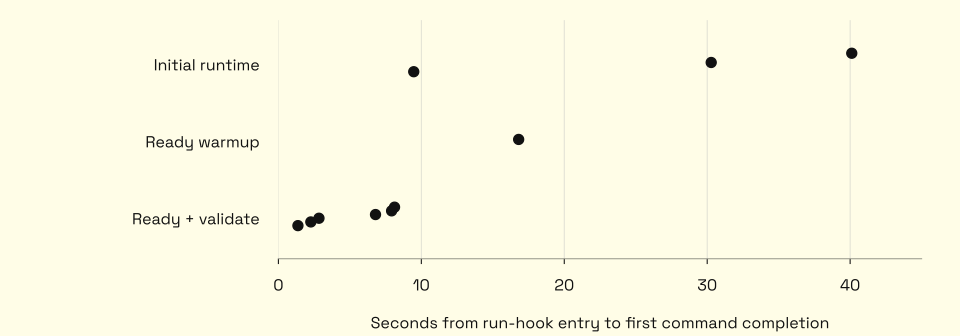
The fastest result with both hooks was around 1.4 seconds, but another run of that version took almost eight seconds inside the VM. Starting the same processes after every restore was still leaving work on the path to the first command.
Preparing the snapshot
Restoring a snapshot doesn't require every part of it to be immediately available in memory. Firecracker supports loading snapshot memory on demand, where accessing a page that hasn't been loaded causes a page fault and waits for that data to become available. A process starting for the first time can touch many pages across its executable, shared libraries and supporting files before it gets to the operation we asked it to perform.
I moved Node and rclone into supervisor startup, so the snapshot would capture the command server already listening and rclone's rcd daemon ready to accept mount requests. A new session could then configure its mount through the existing daemon and use the running command server, removing both process initialisations from its startup path.
That gave each stage of the image build and startup a specific job.
| Stage | Work done for Autohive |
|---|---|
| Dockerfile | Install the tools and libraries, compile Python bytecode and build font caches |
| Application startup | Start the supervisor, rclone daemon and non-root command server |
ready | Exercise the filesystem client and representative tool workloads before snapshot capture |
validate | Run those workloads again on a VM restored from the snapshot |
run | Apply the conversation's configuration and connect its mounted files |
For rclone, the warmup creates a temporary FUSE mount backed by a local directory. This exercises the daemon's mount and filesystem code without connecting to a user's content area during the build. The temporary mount is removed afterwards, while the initialised daemon remains running for the snapshot.
AWS tracks the snapshot regions accessed during validation and optimises their retrieval during startup, so validate needs to exercise the restored environment beyond checking that its server responds. I run the same warmup operations in both hooks, first to prepare the state before capture, then to exercise it after restoration.
Warming the work the agent will do
The command server was now running, but the Python scripts it launched still had to initialise their own interpreter and libraries. Importing those libraries during warmup helped, but left code for operations such as saving documents and rendering charts untouched until the agent first used it.
I added a Python warmup script to ready and validate that performs those operations with generated data. It aggregates a dataframe, writes Parquet and spreadsheets, saves documents and renders PDFs and charts. For a Word document, that means going through the save operation as well as importing the library.
from docx import Document

def warm_documents(directory):
    document = Document()
    document.add_paragraph("warm")
    document.save(directory / "warm.docx")
The script runs as the non-root runner and removes its temporary files afterwards. Once the process exits, the executable and library pages it read can remain in the guest's page cache and be captured in the snapshot. The agent's next Python process still imports its own modules, but can reuse those cached pages, with validation also exercising their retrieval after restoration.
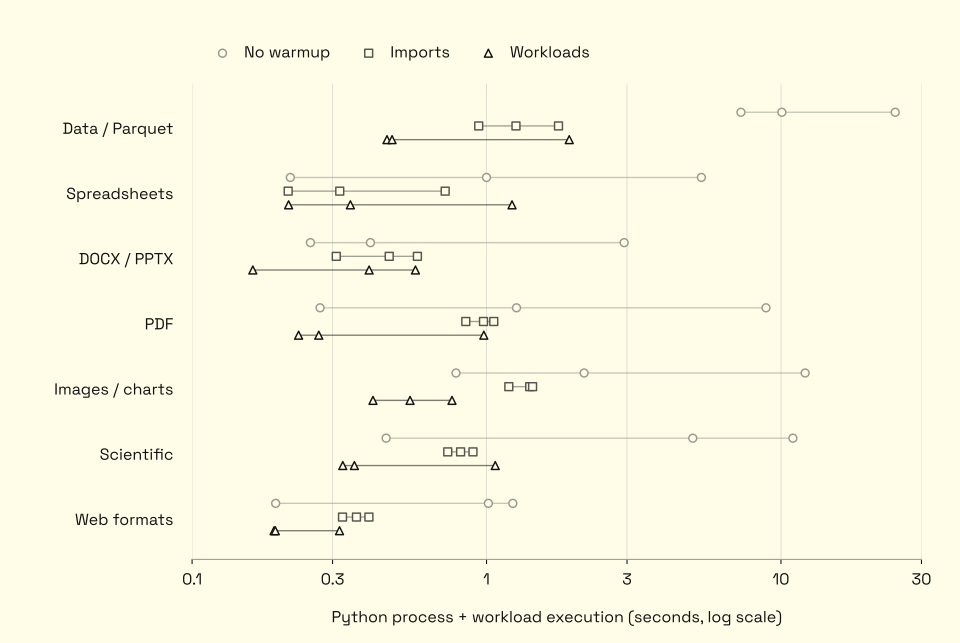
To check the effect on fresh Python processes, I compared no warmup, imports and these workloads in an isolated image. The data and Parquet workload took a median of 10 seconds without warming, 1.26 seconds with imports and 478 ms with workload warming.
Finding delays outside the VM
Once process startup was faster, the first WebDAV listing became more visible in the timings. Before the mount could become ready, Autohive still had to authenticate the request, resolve its access and return the directory contents.
I work at Raygun as well as Autohive, so Raygun APM was a natural choice for following those requests into the application and database. The lower overhead of the v3 agent meant I could keep it running in production and compare the request traces with the supervisor's timings in CloudWatch.
Directory listings were repeating workspace permission queries for each child, even though the request had already established that access. I moved those checks into request scope while retaining the agent's file and folder restrictions, removing the repeated queries as the listing grew.
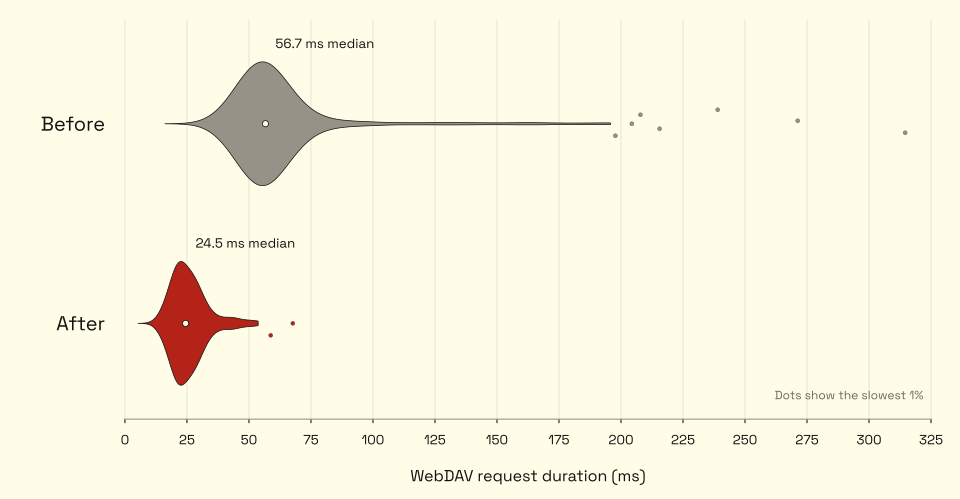
Consolidating the authorisation queries introduced another problem. The request took around 56 ms, but the PostgreSQL execution span was tiny, so where was the rest of that time going? Additional timings and the generated SQL showed that PostgreSQL was spending around 31 ms just planning the combined query. Splitting out the indexed session-token lookup from the remaining permission query brought that down to around 4 ms, while keeping the number of queries bounded.
After deploying the query-planning fix, the median successful PROPFIND request fell from 57 ms to 24 ms, with the 95th percentile falling from 119 ms to 43 ms. WebDAV uses PROPFIND to list directories, something agents do frequently as they explore the available files, so this also speeds up directory listings throughout a session whenever rclone needs to fetch them. Having both the mount timings and production traces let me follow the delay into the database instead of treating it as another VM startup problem.
The deployed result
With this deployed, the median time to a new environment with its files mounted was 2.2 seconds, and to completing its first command was 3.1 seconds including that startup. An agent working on an uploaded spreadsheet could get into the file within a few seconds, then continue its analysis in the same environment.
I measured this by joining Autohive's VM request timestamps to the production logs for mount readiness and command execution. These timings include AWS startup, connecting the filesystem, dispatching the command and running it, ending when the command completes inside the VM. They exclude the model's time deciding what to run and delivery of the result back to the agent.
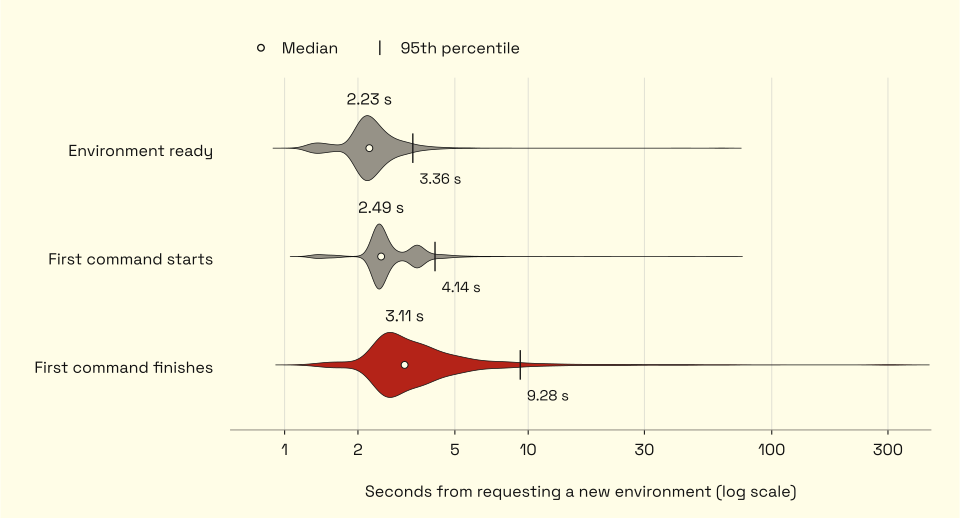
The first-command timings include agents' actual work, so longer-running scripts account for part of the wider spread in completion times.
There is still a long tail in getting the environment ready and starting the first command, which I'd like to investigate further. Those delays happen before the command runs, so they aren't explained by longer-running scripts. Overall though, a median of 2.5 seconds from requesting a new environment to running the first command, with the agent's files mounted and ready to use, is incredibly fast for what we're setting up.
Using Autohive connections from the sandbox
With agents able to run scripts against their files, I wanted them to use their existing Autohive connections from those scripts as well. An agent with a GitHub connection should be able to clone a private repository with the same command you'd use locally.
git clone https://github.com/example/private-repo.gitPassing the access token into the environment would make that work, but any code running there could read it and send it elsewhere. I also didn't want the agent to have to retrieve credentials, configure Git or choose a different way to authenticate each program it used. Autohive already managed those connections, so I wanted it to authenticate requests without giving the provider credentials to the sandbox.
Using the connections the agent already has
I added provider routes that describe which origins support credential injection and how to authenticate requests to them. GitHub needed two routes, using the same connection's access token in different formats.
| Origin | Authentication | Used for |
|---|---|---|
https://api.github.com | Bearer token | GitHub API requests |
https://github.com | Basic auth with x-access-token as the username | Git over HTTPS |
The route enables support for that origin, but access still comes from the agent's configuration. Autohive resolves the provider from an attached integration or an integration action activated through a skill, then uses the specific connection selected for it. If that configuration doesn't resolve to a single connection, the sandbox doesn't get to pick an arbitrary account from the workspace. The connection's permissions apply to these requests, so a GitHub connection with write access also lets the agent push changes without receiving the token itself.
This lets a Python script call the API and Git clone a repository using the same connection, without the agent handling either authentication format. Adding support for another provider using Bearer or Basic authentication means configuring its origin and credential format, rather than teaching each program how to retrieve an Autohive connection.
Intercepting requests on Lambda
I initially wanted to use nftables to redirect the runner's traffic, but Lambda's managed kernel didn't support it. I tried the legacy iptables route as well, only to find it was missing xt_owner, the module needed to match the runner's user. Even with all the available capabilities enabled, I couldn't use kernel features that weren't there.
Setting HTTP_PROXY and HTTPS_PROXY would only work for programs that respected those variables. I wanted interception to happen without depending on how an agent's script or its HTTP library opened connections, so I used eBPF hooks attached to a Linux cgroup containing the command runner.
The connect4 and connect6 hooks rewrite TCP connections on ports 80 and 443 to the supervisor's local proxy. The supervisor places the runner in that cgroup before executing it, and any child processes inherit the same membership. The supervisor itself stays outside the cgroup so its requests to the gateway aren't redirected back into its own proxy.
Keeping credentials outside the VM
I split the proxy between the supervisor inside the VM and a credential gateway in Autohive. The supervisor intercepts requests, while the gateway resolves the connection and adds its credentials before forwarding to the provider. This keeps OAuth tokens and refresh handling alongside Autohive's existing connection management, without copying them into each VM. Cloudflare's outbound Workers provide a similar place outside the sandbox to authenticate outgoing requests.
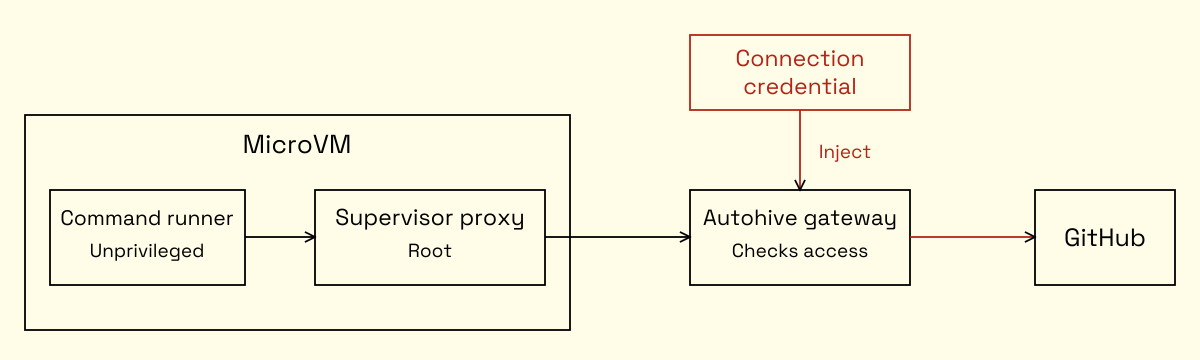
Redirecting a connection to the supervisor means the proxy needs to recover where the client intended to send it. For HTTP it reads the Host header, and for HTTPS it uses the hostname supplied through Server Name Indication (SNI). The runtime configures certificate trust for Git, Python and Node so their HTTPS requests can pass through the proxy without the agent changing each command.
The supervisor then forwards the method and body to the gateway, carrying the original scheme, hostname and path in internal headers. A separate gateway bearer identifies the VM session, so Autohive can look up its assigned agent and connection grants without trusting the command to supply that identity. That bearer stays in the supervisor and uses its own header, separate from any Authorization header the client sent for the upstream service.
At the gateway, the destination must match an exact origin granted to the session before it receives a platform credential. For a matching connection, the gateway removes the client's authorisation and cookies, then sets the provider's authorisation using the route's Bearer or Basic format. Requests without a usable grant can still reach public services, including package registries, without receiving an Autohive credential.
Some clients require a credential before they'll make a request at all. The GitHub CLI, gh, was one of these, so the runtime supplies a non-secret GH_TOKEN placeholder that the gateway replaces before forwarding to GitHub. Hermes uses placeholder tokens with its host-side proxy for the same purpose, allowing existing clients to send authenticated requests without giving them the real credential.
Keeping access tied to the session
Keeping authorisation in the gateway means it can check the active session, agent capability, configured origin and selected connection on every request. Removing a connection or its route stops subsequent requests from receiving that credential, and terminating the session invalidates the supervisor's gateway token.
Browser use and more
With this opening up so many possibilities, I started looking at what else we could add. Most recently, I added browser use for our agents through Vercel's agent-browser. It provides a command-line interface for opening pages, inspecting their controls, filling forms and taking screenshots, so it fits into the shell access the agent already has.
I added Chromium and agent-browser to the image, with a browser-use skill explaining how to use them through the existing bash and read_file tools. For example, the agent can open a page, inspect its interactive elements and save a screenshot.
agent-browser open https://example.com
agent-browser snapshot -i
agent-browser screenshot /scratchpad/browser/artifacts/page.png
The snapshot returns references to the page's controls that the agent can use in subsequent commands. The screenshot is a file that read_file can put into the model's context, and downloads land in the same filesystem as the agent's scripts. A spreadsheet downloaded through the browser can then go through the analysis and reporting process described at the start of this post, without another transfer between execution environments.
There was still some work needed to fit the browser into the runtime. I took control of launching Chromium so it runs as the unprivileged runner with its own browser sandbox enabled, and keeps its profile under /scratchpad/browser. The build warmup exercises rendering, form input and screenshots, then closes the browser and removes its temporary profile before snapshot capture. Using the same snapshot preparation and prewarming techniques described earlier, adding Chromium had a negligible effect on VM startup times, with the browser itself starting when the agent first needs it.
Building on this with Auto
This runtime has also made much of what I wanted from Auto, Autohive's main assistant, possible. The aim is for someone to ask for help with their work and have Auto use the files, skills and connections available in their workspace, without first having to build an agent for that particular task. It can use a skill's instructions and scripts, work on the user's files and produce something they can continue refining in the conversation.
We've also extended the filesystem to support authoring agents and skills. Auto can work on an agent definition in /agent-drafts, or a skill's instructions, scripts and supporting files in /skill-drafts, using the same file operations as the rest of its work. These are working copies, with an explicit save operation that validates and applies the changes through Autohive's existing services. Installed skills stay read-only, so editing a draft doesn't change the version another agent is using halfway through its task.
Closing thoughts
I'm really proud of this work and how much it has changed what we can do with Autohive. What started with wanting agents to open files and run scripts has grown into the runtime behind much of what makes Auto useful. Bringing together MicroVMs, skills, connections and browser use has been a huge step forward for the platform, and it's been really satisfying to build so much of that.
Seeing my coworkers use Auto has been one of the best parts. They've been creating slide decks, reviewing our website and asking it to turn those findings into designs, then sharing how impressed they are with the results and how much smoother the work feels. After spending so much time on mounts, snapshots and startup timings, seeing that translate into something people enjoy using means a lot. A big thanks to Andre as well for his work on the file tools and the wider harness changes that helped bring this together.
This is also the longest blog post I've written so far, and it's been through a lot of revisions. I went back and forth on splitting it into several posts, but kept it together because the decisions make more sense alongside each other. The filesystem affects the runtime, the runtime affects startup, and the connections determine what the code running there can actually do.
If you've made it this far, thanks for reading! I hope this gives you a useful reference for approaching agent sandboxing and building with Lambda MicroVMs, including the details I would have liked to find when I started. I've got more posts on the way, so keep an eye out for those.